Article
cloud and virtualization
What is Microsoft Azure? Microsoft Azure Basics
Microsoft Azure, formerly known as Windows Azure, is Microsoft's public cloud computing platform. It provides a wide range of cloud services, including computing, analytics, storage, and networking. Users can use these services to develop and scale new applications or run existing applications in the public cloud.
What is Microsoft Azure?
Microsoft Azure, formerly known as Windows Azure, is Microsoft's public cloud computing platform. It provides a wide range of cloud services, including computing, analytics, storage, and networking. Users can use these services to develop and scale new applications or run existing applications in the public cloud. Microsoft Azure has elements of all cloud computing types:
- Platform as a Service (PaaS)
- Infrastructure as a Service (IaaS)
- Software as a Service (SaaS).
Many people wonder what Microsoft Azure is and how to use it. The Azure cloud is generally available in 24 regions worldwide. Microsoft classifies Azure services into 11 main product types:
- Compute – These services include virtual machines, containers, batch processing services, and remote application access.
- Web and Mobile Services – These services support the development and deployment of websites and mobile applications, and also offer API management, notifications, and reporting features.
- Data Storage – This category includes SQL and NoSQL databases as a service, as well as unstructured storage and cloud caching.
- Analytics – These services provide distributed data analysis, as well as real-time analytics, big data analytics, machine learning, and data warehousing.
- Networking – This group includes virtual networks, dedicated connections, and network gateways, as well as services related to traffic management, load balancing, and maintaining the Domain Name System (DNS).
- Media and Content Delivery Networks (CDN) – These services include on-demand streaming, encoding, indexing, and media playback.
- Hybrid Integration – These services provide backup and recovery servers, and connect private and public clouds.
- Identity and Access Management (IAM) – This option ensures that only authorized users can use the Azure platform. These services help protect encryption keys and other sensitive information.
- Internet of Things (IoT) – These services help users capture, monitor, and analyze IoT data from sensors and other devices.
- Software development – these are services that help application developers share code, test applications, and track potential issues. Azure supports a wide range of application programming languages, including JavaScript, Python, .NET, and Node.js.
- Management and security – these products help administrators manage their Azure cloud. They support deployment, enable scheduling and running tasks, and create automated calls to scripts and services. This product group also includes capabilities for identifying and responding to cloud security threats.
The full list of Azure services is constantly evolving. New features and functionalities are added every few months.
How to get started with Microsoft Azure...
Microsoft offers a trial version of the Azure platform. This gives you 30-day access and a $200 credit to use on any services offered by the platform. To test Azure, all you need is a Microsoft account and a credit card, which will be used only for registration.
To create a trial account, register at https://azure.microsoft.com/pl-pl/free/
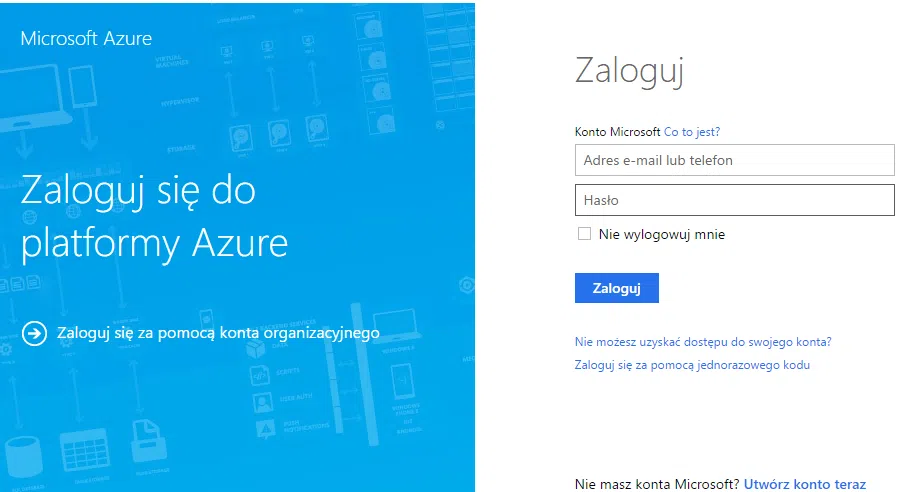
Figure 1. Microsoft Azure login screen
After entering your login and password, the Azure account registration page will appear.
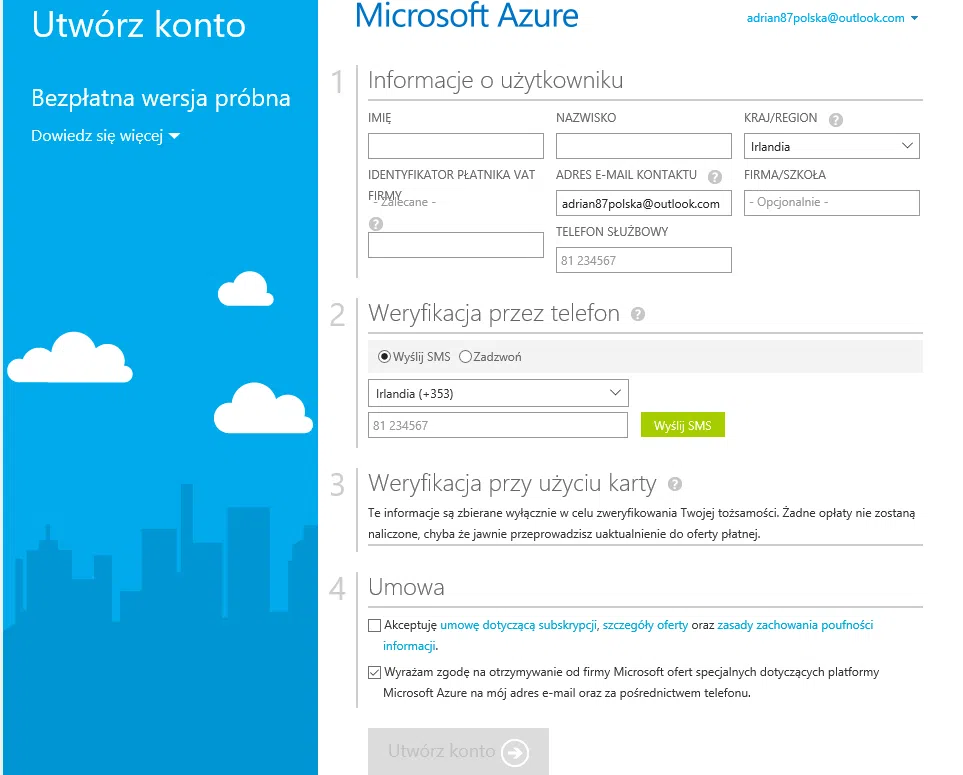
Figure 2. Microsoft Azure registration screen
After completing all the required details and clicking the "Create an account" button, a new subscription will be created, to which you will be automatically redirected. This will be the Azure administration portal.
Introduction to administration portals
The online management portal provides the simplest way to manage resources created in Azure. You can use it to create virtual networks, use cloud services, create and manage virtual machines, configure storage resource accounts, or define web services.
There are currently two versions of the portal. The production version, called the Azure Management Portal, is available at https://manage.windowsazure.com. The new Azure Portal, currently under development, can be found at https://portal.azure.com/. The portals differ significantly in both appearance and navigation. Many features are not yet available in the new portal, such as Azure AD management and remote app services. Some features were designed from the outset for the new portal and will be available exclusively there.
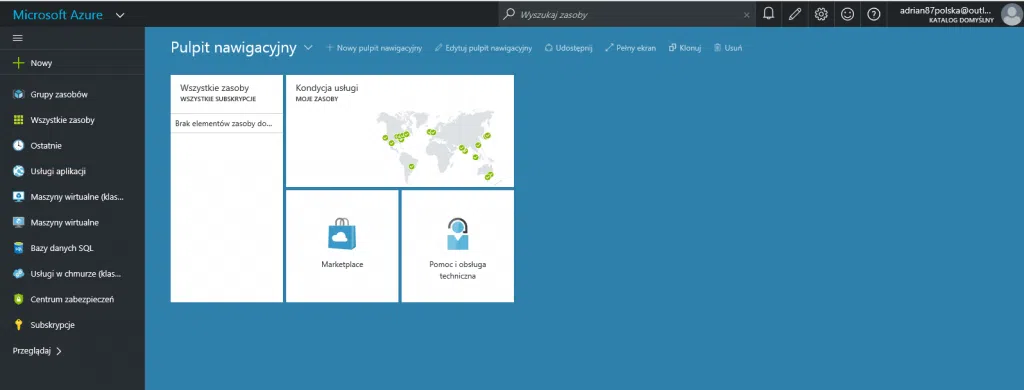
Figure 3. Azure Portal dashboard
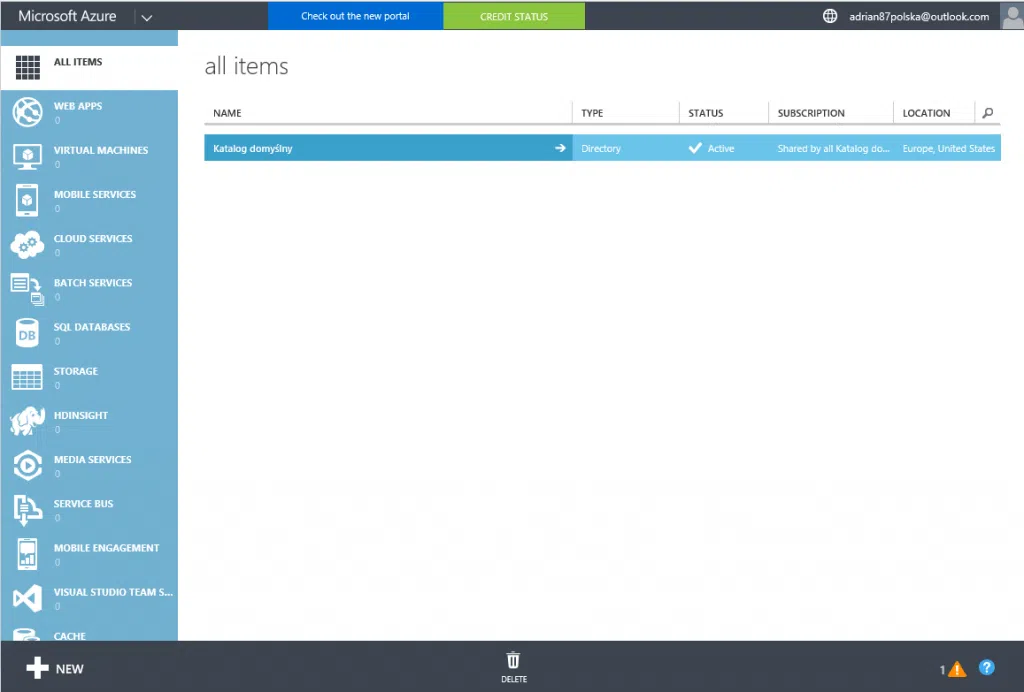
Figure 4. Azure Management Portal Dashboard
Both portals can be used interchangeably. Services configured in the old portal will be visible in the new one, and vice versa.
Creating a Virtual Network and VPN Connection
Virtual networks (VNets) are used in Azure to provide a layer of security and isolation for services. Virtual machines and services that are part of the same virtual network can access each other. By default, external services cannot connect to services in the virtual network. However, you can configure the network to allow an external service to access resources within the virtual network.
VNets should always be created first, before configuring other services that will use them. Because the choice of network for a given machine is made during its creation, if you create a virtual machine and later want to move it to the virtual network, it won't be a simple reconfiguration. The quickest and most common method is to delete the virtual machine, being careful not to delete all the disks associated with it, and then recreate the machines using the original disks already in the virtual network.
In the example below, a virtual network and VPN gateway will be created to connect Azure resources to the physical office network.
Creating a Virtual Network
To create a network, log in to manage.windowsazure.com and
- Click the + New button at the bottom of the screen, then select Network Services > Virtual Network > Quick Create.
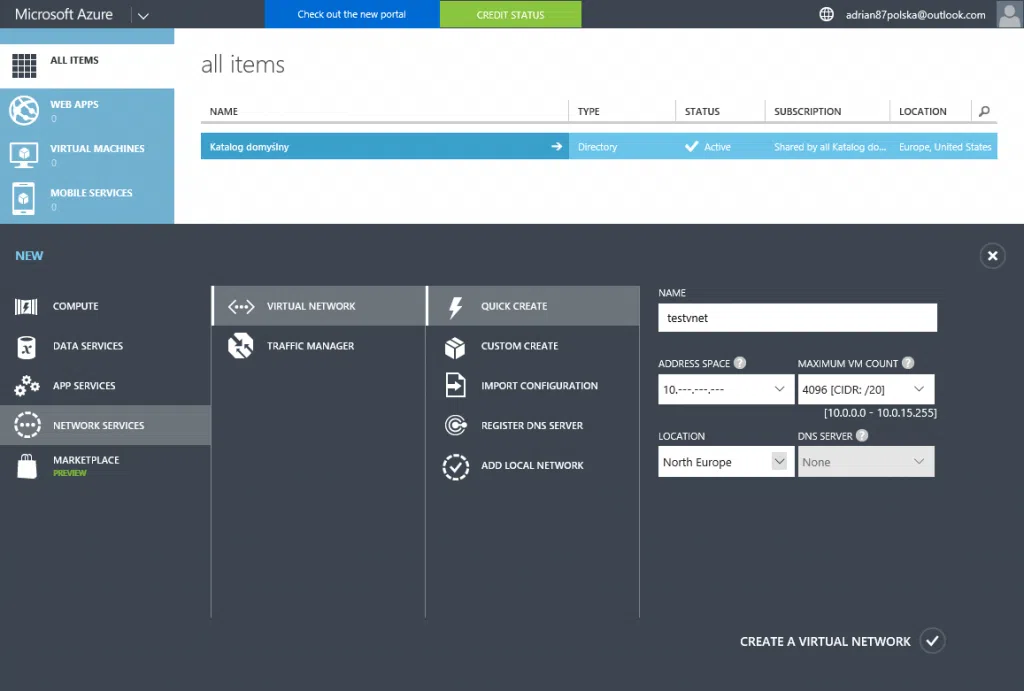
Figure 5. Creating a virtual network using the Quick Create option
- Fill in the name field.
- Next, select the address space (). The drop-down list contains only three options: 10.0.0.0, 172.16.0.0, and 192.168.0.0. As you can see, these are private network addresses. Remember to check which private addresses are used on the network you want to connect to and choose one that definitely won't conflict with the office network addressing. For this example, the addressing 10. —. — .— was selected.
- For Maximum VM Count, select a number from the range of IP addresses contained in the selected mask. Looking at the values in the drop-down list, you can see that the largest mask (and therefore the smallest number of IP addresses) is 20, which gives 4096 addresses.
- For Location, select the desired region. This setting determines which data center the network and other services that will use this address space will be located in.
- For DNS server, you can leave the field blank; name resolution will be provided by Azure. If you want to use local DNS servers, you must specify the DNS servers used on the office network. In this example, simply leave the field blank.
- After filling in all the fields, click the "Create virtual network" button. You can view the result by navigating to the networks section in the main Azure dashboard.
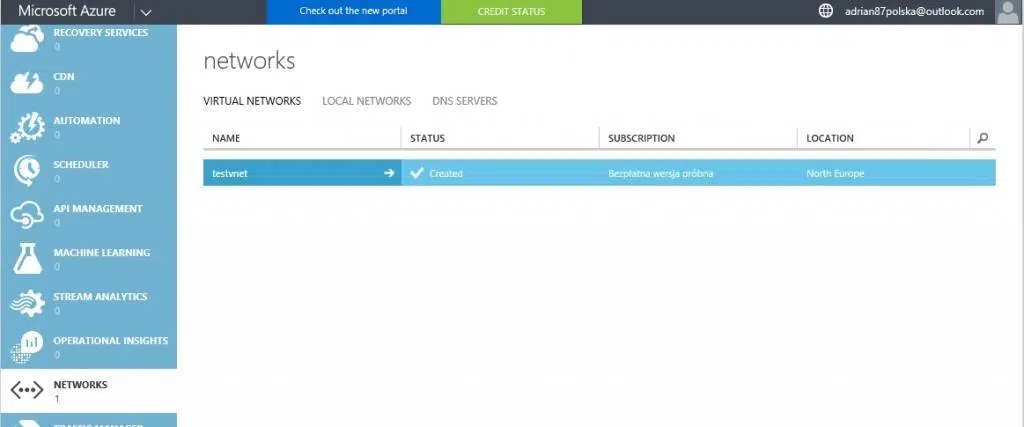
Figure 6. View of the Virtual Networks section
Clicking on the newly created network "testvnet" in the Virtual Networks section will allow you to view and edit its properties.
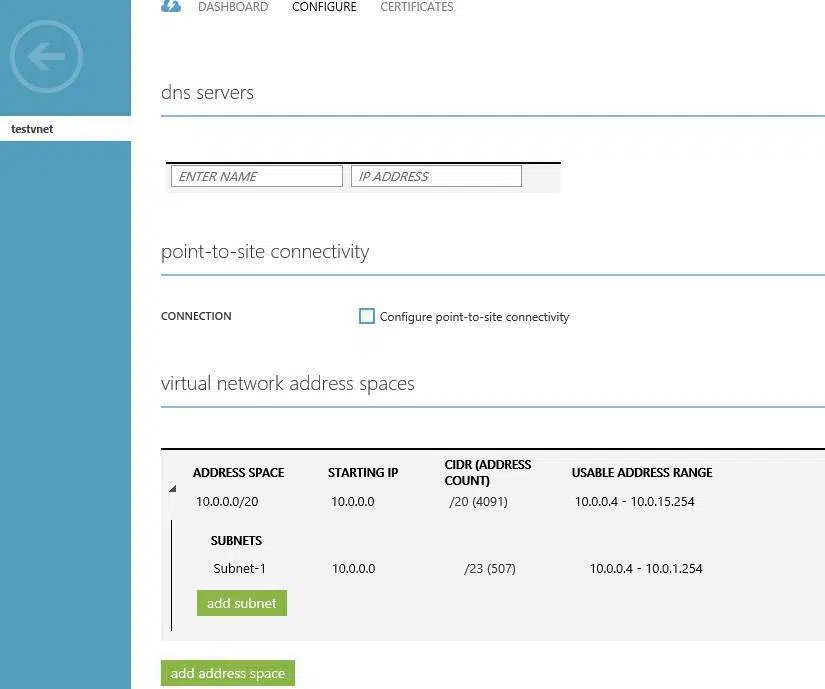
Figure 7. Editing Virtual Network Properties
You can freely configure the number of address spaces and subnets within them. Additionally, you can edit its options by clicking on a given address space or subnet. The number of subnets in a single address space is limited only by CIDR notation. As shown in the attached example, you can configure subnets with masks greater than 24 using CIDR notation.
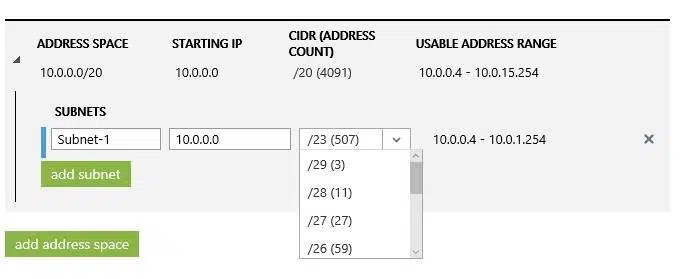
Figure 8. Changing the Subnet Size
Creating a Site-to-Site VPN Connection
Azure allows you to create three types of VPN connections:
VPN Point-to-Site – Allows local computers to create a tunnel using Secure Socket Tunneling Protocol (SSTP) to a virtual network in Azure. Certificates are used to authenticate the connection. To create a VPN Point-to-Site on the Azure side, you must configure a VPN Gateway. One VPN Gateway allows for a maximum simultaneous connection of 128 Point-to-Site tunnels.
VPN Site-to-Site – Allows you to securely connect your local network and virtual network in Azure. To configure the connection, you must have a public IPv4 address on the local network side and compatible VPN devices. To create a connection on the Azure side, you must configure a VPN Gateway, which can create one static VPN tunnel or up to 30 dynamic VPN tunnels. In this example, the connection will be established using this type of tunnel. For a list of compatible devices and their configurations, visit https://learn.microsoft.com/en-us/azure/vpn-gateway/vpn-gateway-about-vpn-devices
ExpressRoute – This is a private site-to-site tunnel between the Azure datacenter and the institution's network. ExpressRoute connections do not use the public internet. They offer greater reliability, speed, lower latency, and higher security than typical internet connections. ExpressRoute connections are established using a Multiprotocol Label Switching (MPLS) VPN provided by a network service provider.
To configure a VPN connection between the Azure virtual network and the on-premises network, go to the Networks section in the Azure portal and click the Local Networks tab.
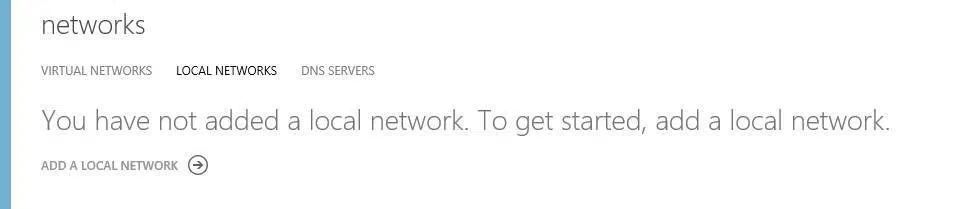
Figure 9. Local Networks Tab
After selecting the Add Local Network button, the first screen of the local network configuration wizard will appear. Enter the Name and Public IP address of the VPN device, and then click the arrow at the bottom of the screen to proceed to the next screen.
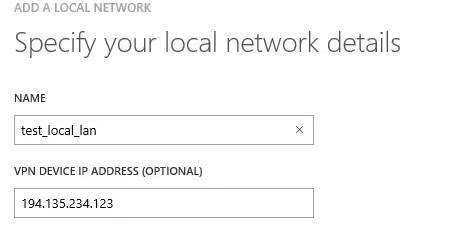
Figure 10. Creating a new local network
In the next step, you need to complete the office network addressing. It is possible to add multiple addresses to a single local network.
Finally, click the confirmation button at the bottom of the screen.
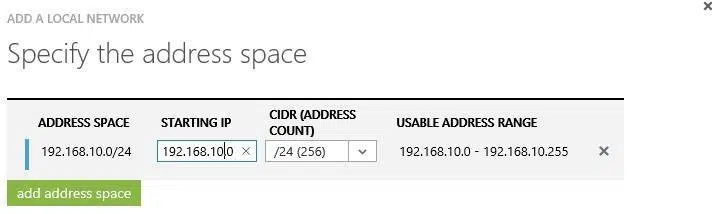
Figure 11. Adding Local Address Spaces
After creating the local network, go to the Virtual Networks tab, open the "testvnet" network, go to the Configure section, select "Connect to the local network," and finally click Save.
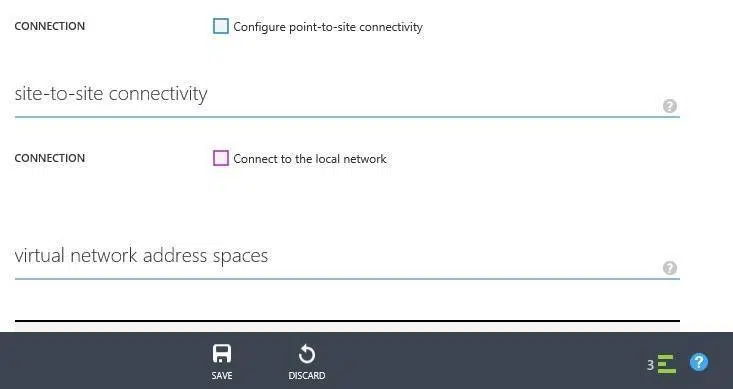
Figure 12. Virtual network configuration screen
Next, navigate to the dashboard section. At the bottom of the screen, click the Create Gateway button and select one of the options. The choice depends on the capabilities of the device on the local network. For this exercise, the static routing option was selected.
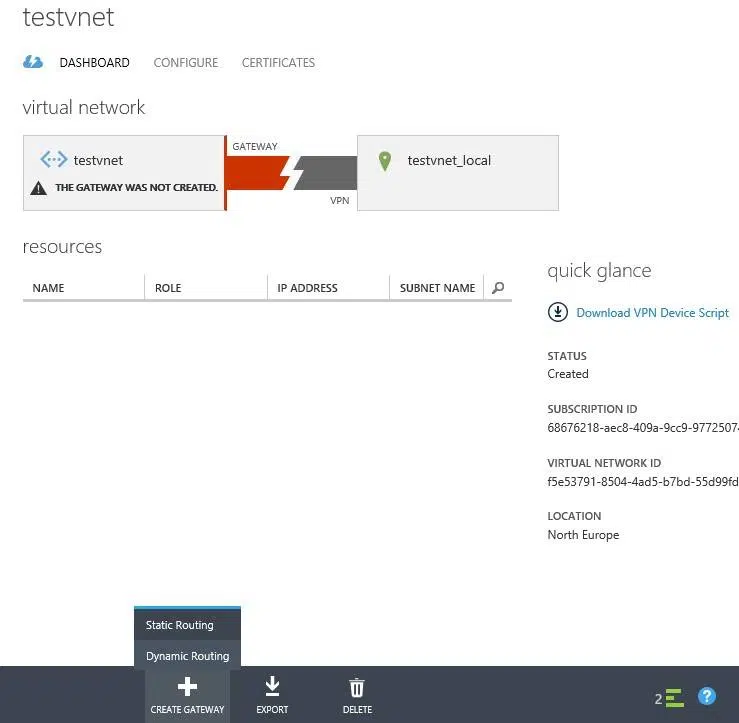
Figure 13. Creating a VPN Gateway
Creating a gateway takes up to an hour. This long time is due to the fact that it is being created. Therefore, it is not recommended to disable the gateway after creating it. Once the gateway has been successfully created, click the Manage key button at the bottom of the screen and copy its value to the appropriate location in the VPN gateway configuration on the local network.
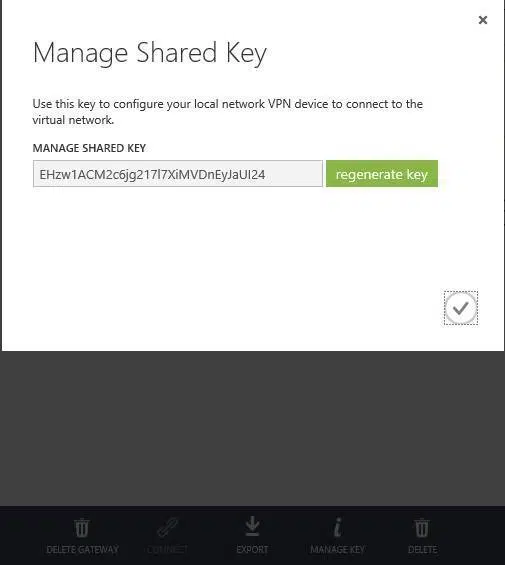
Figure 14. Shared Key Viewer Window
Next, prepare the device on the local network side. Add the previously copied key to the configuration. Microsoft has prepared ready-made configuration scripts for several network device manufacturers. These can be downloaded using the Download VPN Device Script button. Once the configuration on the local network side is ready, click the Connect button.
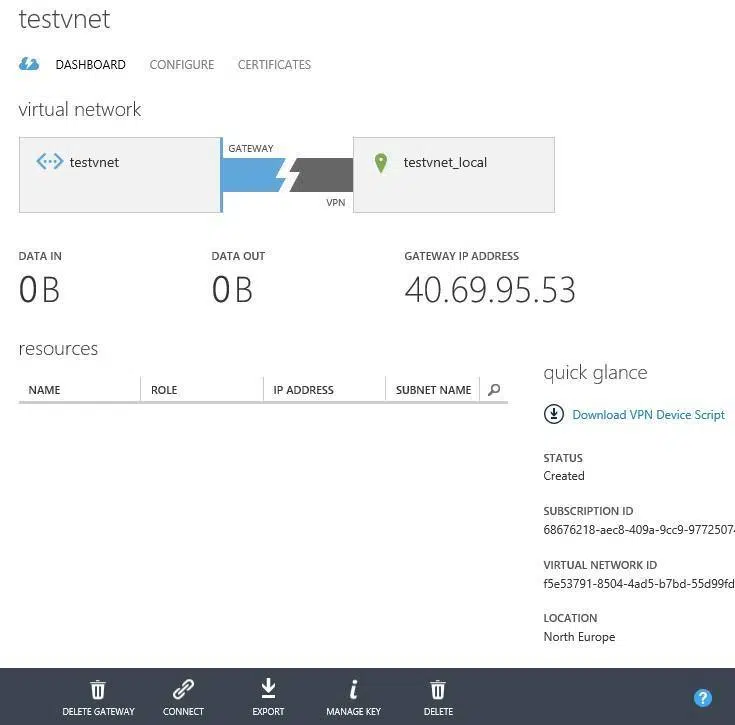
Figure 15. VPN tunnel connection via gateway
A properly set up tunnel will look like the one below.
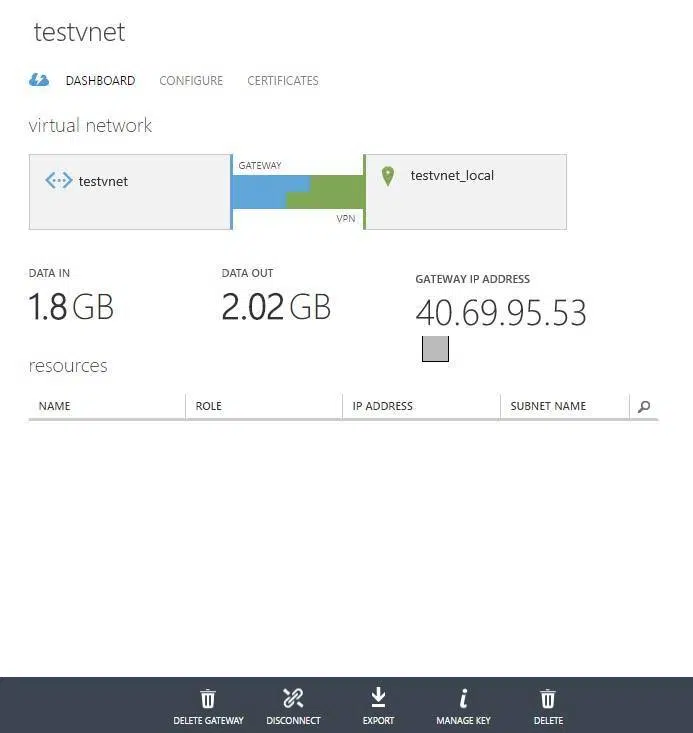
Figure 16. Viewing VPN Tunnel Statistics
Completing all of the above steps will enable the correct establishment of a VPN tunnel between your local network and Microsoft Azure services, enabling easy and secure connection to services built on this platform.
Support Online is a company offering IT services for small, medium, and large enterprises. We provide technical support to over 200 clients worldwide. We encourage you to learn more about our IT OUTSOURCING offerings.
Source:
Own work
Fundamentals of Azure Michael Collier Robin Shahan
https://azure.microsoft.com/en-us/documentation/services/vpn-gateway/
Your IT.
our
support.
our
support.
Contact us
FAQ
What does an IT company do? What IT solutions do we use at Support Online?
When is it worth using an IT company?
Why is it worth hiring an IT company rather than a freelance IT specialist?
What are the advantages of working with IT Support Online?
What IT solutions do we use at Support Online?
When is it worth using an IT company?
Why is it worth hiring an IT company rather than a freelance IT specialist?
What are the advantages of working with IT Support Online?
What IT solutions do we use at Support Online?
When is it worth using an IT company?
Why is it worth hiring an IT company rather than a freelance IT specialist?
What are the advantages of working with IT Support Online?
An IT company, or IT firm, deals with information technology in a broad sense. This includes, among other things:
- Software design and development: An IT company can create custom applications for other companies or software products for the mass market. Depending on their specialization, these can include mobile applications, desktop applications, web applications, or embedded systems.
- Consulting services: An IT company often provides experts to advise on implementing new technologies, optimizing business processes, or selecting appropriate technological solutions.
- Cloud solutions: Many IT companies specialize in implementing and managing cloud solutions, such as data storage, application hosting, and data analysis platforms.
- IT security: Protection against cyberattacks, security audits, implementing security policies, and network monitoring are just some of the IT companies' responsibilities in this area.
- IT infrastructure management: In this area, a company may manage servers, databases, networks, and endpoints.
- Technical Support and Service: An IT company may provide support for its own products or general IT support for other companies, managing their technology on a daily basis.
- Training: Many IT providers also offer training in software use and secure technology use.
- Hardware Solutions: Some IT companies may also provide and configure computer, server, or network hardware.
Depending on their specialization and size, an IT company may offer one, several, or all of the above solutions. When choosing a provider, it's important to thoroughly understand their services and tailor them to your individual needs.
At Support Online, we have been supporting companies for years with
- comprehensive user support (both on-site and remotely),
- we service computers, phones, tablets, and related network issues,
- we specialize in server administration: Windows, Linux/Unix,
- we support virtualizers such as KVM, Hyper-V, VMWare, and Proxmox,
- we support cloud services, particularly solutions such as Azure, Microsoft 365, and AWS,
- we monitor servers and devices on the internet,
- we consult on development, DRP, and support the stability of your business in the IT layer.
If you're looking for a good IT company, Support Online is the right place to grow your business.
It's worth using an IT company like Support Online when:
- You plan to implement new technologies or software in your company.
- You need specialized technology consulting.
- You want to optimize existing IT processes.
- You struggle with digital security issues.
- You need support in managing your IT infrastructure.
- You lack internal resources or expertise to implement certain technology projects.
Using external IT experts can bring benefits in terms of saving time and resources, and ensuring high-quality solutions.
Hiring an IT company like Support Online offers several key benefits over an IT freelancer:
- Support from the entire team: An IT company has a full team of specialists, from DevOps specialists and Cyber Security Specialists to IT Helpdesk Specialists, who possess diverse skills and experience, enabling faster problem resolution and the implementation of more complex projects.
- Reliability and stability: IT companies have an established reputation and track record, which can translate into greater reliability and stability of services.
- Maintenance and support: An IT company can offer service contracts, warranties, and after-sales support, which may be more difficult to obtain from an individual freelancer.
- Resources: Companies have access to more resources, tools, and technologies that can accelerate and improve project execution.
- Long-term availability: The risk of a freelancer disappearing or changing careers is greater than the risk of a well-established company going out of business.
However, it's worth noting that the choice between a company and a freelancer depends on your specific needs and situation. If you value peace of mind and a quick response to unexpected problems, it is worth choosing an IT company such as Support Online.
Partnering with IT Support Online offers the following advantages:
- Professional IT outsourcing: The company guarantees high-quality IT outsourcing services for businesses of all sizes.
- Comprehensive IT support: IT Support Online provides comprehensive IT support that meets the diverse needs of businesses.
- Saves time and money: With our support, clients can focus on their core business activities while reducing the costs associated with information technology management.
- Serving a diverse range of businesses: The company specializes in serving both small and medium-sized enterprises and large corporations, demonstrating its flexibility and ability to adapt to diverse client needs.
- Leadership in IT outsourcing: The company is recognized as a leader in IT outsourcing, particularly in the Poznań and Warsaw regions.
By partnering with our company, IT Support Online, businesses can count on a high standard of service and professionalism at every stage of the relationship.